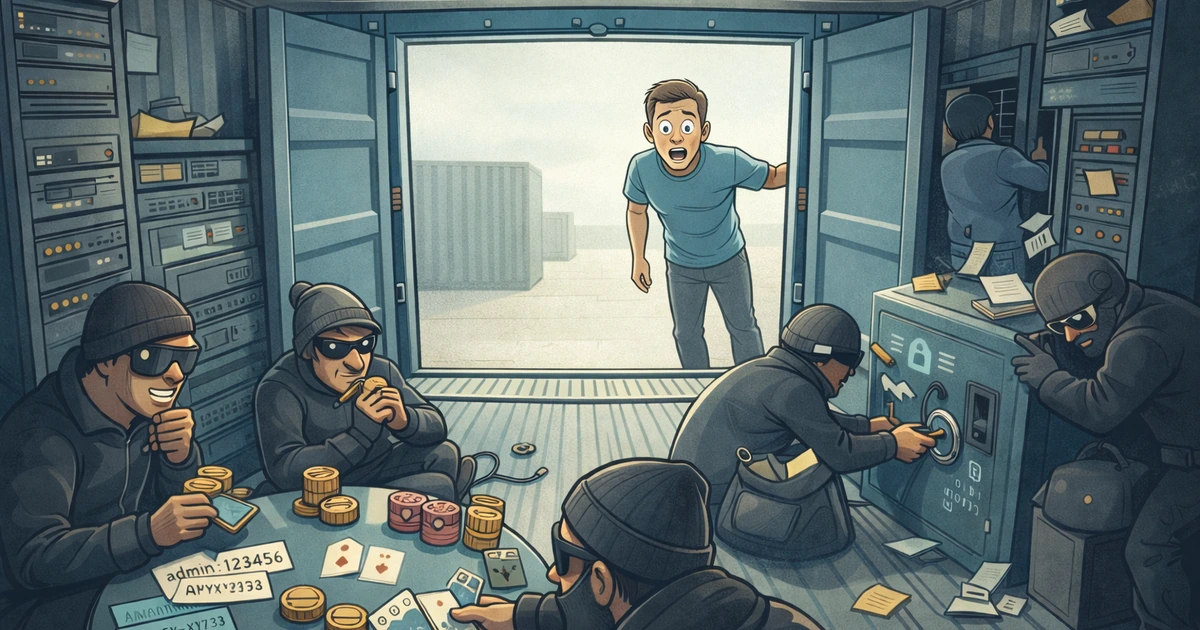
The Party Marcus Didn't Know Was Happening in His Container
Marcus had done everything right. As a fullstack engineer at a fintech startup, he'd implemented authentication with proper session management, sanitized all user inputs, used parameterized queries to prevent SQL injection, and even added rate limiting to his API endpoints. He'd run security scans, fixed every CVE that came up, and passed the penetration test with flying colors. His application was secure—he was sure of it.
When it came time to deploy, Marcus wrote a clean, simple Dockerfile. It worked on the first try. The container started, the app ran, deployments succeeded. He moved on to the next feature, confident that his deployment foundation was solid.
But here's what Marcus didn't see: his container was running as root. Every process, every file operation, every system call—all happening with root privileges. He never explicitly set a user, so he had no idea it was happening. Docker didn't warn him. The tutorial he followed didn't mention it. It was the silent default.
Six months later, a security researcher discovered a deserialization vulnerability in one of Marcus's dependencies. An attacker exploited it, gained a shell in the container, and found themselves with root access. They read database credentials from environment variables, exfiltrated customer data, and—because the container had the Docker socket mounted for CI/CD purposes—escaped to the host and compromised the entire infrastructure.
The security team's incident report landed on Marcus's desk at 3 AM. His first thought: "How did they get root?" His second: "My Dockerfile doesn't even set a user. What user is it running as?"
Docker doesn't break Unix permissions—it inherits them. When you don't set them explicitly, Docker uses dangerous defaults. But Docker never tells you this. There's no warning when you build an image without a USER directive. The abstraction layer that makes containers easy to use also makes security problems invisible.
Docker containers are Linux processes. Every file, every process, every permission follows the same Unix model. Docker adds layers of abstraction that make permissions invisible—until an attacker exploits them.
The Mental Model: Containers Are Processes, Not VMs
Containers aren't isolated virtual machines—they're processes with extra isolation. Processes have users, files have owners, permissions still apply. Docker's job is to make this feel isolated, but the foundation is Unix.
When you don't specify a user in your Dockerfile, Docker defaults to root. When you don't set ownership during COPY, files default to root ownership. When you mount volumes without permission checks, you're breaking container isolation.
Marcus pulled up his Dockerfile—the one he'd written six months ago. It looked exactly like what you'd find in any tutorial:
FROM node:lts
COPY . /app
WORKDIR /app
RUN npm install
CMD ["node", "index.js"]
Clean. Simple. It worked. But as Marcus stared at it, he realized he couldn't answer basic questions: Who owns
/app? He never specified, so it's root. Who runsnode? Docker's default is root. What permissions does/apphave? It's root:root, inherited from the build. And when the attacker compromised his app? They got root—full container control.This Dockerfile worked. It deployed. It ran. There were no errors, no warnings, nothing that told Marcus something was wrong. But it was a security time bomb, and he didn't know until it was too late.
The Three Permission Sins of Dockerfiles
As Marcus investigated the breach, he discovered three critical permission misconfigurations in his Dockerfile. Each one had contributed to the attack. Understanding these is the difference between a secure container and a compromised one.
Sin #1: Running as Root (The Invisible One)
Marcus's first discovery came when he ran
docker execinto a running container and typedwhoami. The output:root. He checked another container. Also root. Every single container was running as root, and he'd never explicitly set it.
Every Dockerfile starts as root unless you explicitly set USER. There's no indicator, no warning. Most tutorials skip this entirely. It's the invisible default that everyone accepts—until it's too late.
Running as root means container escape equals host root access in many scenarios. If volumes are mounted, the process can modify the host filesystem directly. It also enables exploitation of vulnerabilities like CVE-2019-5736 that require root privileges to trigger.
This was Marcus's Dockerfile—the one that got compromised:
FROM node:lts
COPY . /app
RUN npm install
CMD ["node", "index.js"]  # Running as root!
After the incident, Marcus fixed it. Here's what he changed:
FROM node:lts
RUN groupadd -r appuser && useradd -r -g appuser appuser
COPY --chown=appuser:appuser . /app
USER appuser
WORKDIR /app
RUN npm install
CMD ["node", "index.js"]  # Running as appuser!
If your app has a vulnerability, an attacker gets root with the first version. With the second, they get limited privileges. That's the difference between a contained incident and a full breach.
Sin #2: Copying Files with Wrong Ownership (The Silent One)
Marcus thought he'd fixed the problem. He added
USER appuserto his Dockerfile and rebuilt. The container started, but then it crashed. Logs showed permission denied errors. The app couldn't write to its own directories.
COPY preserves ownership from build context... sometimes. Default ownership is often root:root. Even if you set USER later, files copied before that are still owned by root. Docker layers are immutable—you can't fix ownership later.
Marcus had set
USER appuser, but he'd copied files before switching users. The app crashed with permission denied errors. He had to start over. This was Marcus's second mistake—a trap he fell into:
FROM node:lts
COPY . /app          # Files owned by root
WORKDIR /app
RUN npm install      # Creates node_modules as root
USER node            # Switch to node user
CMD ["node", "index.js"]  # Can't write to /app!
It looked secure—he was using the
nodeuser. But/appwas owned by root, so thenodeuser couldn't write logs, create temp files, or modify anything. The app failed silently or crashed.Marcus learned the hard way: order matters. Set ownership during COPY, not after. Here's how he fixed it:
FROM node:lts
WORKDIR /app
COPY --chown=node:node package*.json ./
RUN npm install
COPY --chown=node:node . .
USER node
CMD ["node", "index.js"]
Use --chown to specify ownership at copy time. Docker layers are immutable—you can't fix ownership later.
Sin #3: Volume Mounts Without Permission Checks (The Explosive One)
As Marcus dug deeper into the incident report, he found something that made his stomach drop. The attacker hadn't just compromised the container—they'd escaped to the host. The forensics team found a backdoor script in
/var/log/app/backdoor.sh, and it had been there for weeks.Marcus's container mounted
/var/log/appfrom the host for logging. The host directory had 777 permissions. The container ran as root. When the attacker gained shell access, they wrote a malicious script to that mounted directory. They then modified a host cron job to execute it. Container escape achieved—the attacker had persistent access to the host, and the backdoor survived container restarts.
Volume mounts break container isolation. When you mount a host directory, host permissions apply. If the container runs as root, it can modify the host filesystem. Container attack techniques regularly exploit this for lateral movement and persistence.
This was Marcus's third mistake—the one that enabled the host escape:
FROM node:lts
COPY . /app
CMD ["node", "index.js"]
# docker run -v /var/log/app:/app/logs myapp
# If /var/log/app is writable, container can modify host!
After the incident, Marcus fixed both the Dockerfile and the host setup:
FROM node:lts
RUN groupadd -r appuser && useradd -r -g appuser appuser -u 1001
COPY --chown=appuser:appuser . /app
USER appuser
CMD ["node", "index.js"]
# Host directory with correct ownership
sudo chown -R 1001:1001 /var/log/app
sudo chmod 755 /var/log/app

# Container user matches host UID
docker run -v /var/log/app:/app/logs myapp
The key insight: Match container UID to host directory ownership, or you're giving attackers a path to the host.
This was the lesson that cost Marcus's company the most—the one that enabled the full infrastructure breach.
The Permission Chain: Why Order Matters
Dockerfile execution order determines final permissions. Each layer can change ownership, but previous layers are immutable. You can't "fix" permissions in a later layer if files were copied as root.
The rule: Create user first, set ownership during COPY, switch user last.
FROM node:lts
RUN groupadd -r appuser && useradd -r -g appuser appuser
WORKDIR /app
COPY --chown=appuser:appuser package*.json ./
RUN npm install --production
COPY --chown=appuser:appuser . .
USER appuser
CMD ["node", "index.js"]
Real Attacks: What Actually Happened to Marcus
As Marcus reconstructed the attack timeline, he realized the breach had unfolded in stages. Each stage exploited a different permission misconfiguration. Let's trace what actually happened—three attack vectors that turned a single container compromise into a full infrastructure breach.
Attack Vector 1: The Full Infrastructure Takeover
The attack started simply: Marcus's container ran as root. His application had a deserialization vulnerability in a JSON parsing library—a dependency he'd updated three months earlier. An attacker found it, exploited it, and gained remote code execution.
They now had a root shell in Marcus's container.
But here's where it got worse. Marcus's CI/CD pipeline mounted the Docker socket (
-v /var/run/docker.sock:/var/run/docker.sock) so containers could build and deploy other containers. The attacker, running as root, could now create new containers with host filesystem access. They escaped to the host with full privileges, accessed other containers on the same host, and moved laterally through Marcus's entire infrastructure.What started as a single container compromise became a full infrastructure breach. All because the container ran as root.
The defense: Run as a non-root user. Even if the attacker gains a shell, they're limited to that user's privileges. The attack is contained.
Attack Vector 2: The Silent Data Heist
Marcus's container mounted the database directory from the host (
-v /var/lib/postgresql/data:/data) for backups. The container ran as root. His application had a path traversal vulnerability in a log viewer endpoint—something he'd added for debugging and forgotten about.The attacker exploited it. They couldn't access the database through Marcus's application (he had proper authentication), but they didn't need to. They read the host database files directly from
/var/lib/postgresql/data/. Raw database files, unencrypted, accessible because the container ran as root and the volume mount gave it access.No database credentials needed. No application security bypass required. Just a file read vulnerability and root access to the container. By the time Marcus discovered the breach, customer data had been exfiltrated.
The defense: Run as a non-root user, mount volumes as read-only where possible, and use proper host directory permissions.
Attack Vector 3: The Persistent Backdoor
Marcus's application directory had 777 permissions—he'd set it that way months ago when debugging a permission issue and never changed it back. The container ran as root. The attacker exploited the deserialization vulnerability, gained shell access, and wrote a malicious script to the application directory.
The script got executed on the next container restart. It was also picked up by a cron job that ran application health checks. The backdoor persisted through container recreation, updates, and restarts. Marcus rebuilt the image, but the script was still there because it was in a volume mount and the permissions allowed anyone to write to it.
The attacker had persistent access, and Marcus couldn't get rid of it without understanding the permission model. It took the security team three days to fully eradicate the backdoor.
The defense: Set explicit permissions (755 for directories, 644 for files), use a non-root user, and avoid world-writable directories.
The common thread: Each attack relies on permission misconfiguration. Fix permissions, break the attack chain.
When Docker Bends the Rules (And When It Doesn't)
Docker adds security layers (user namespaces, capabilities, Seccomp) on top of Unix permissions, but it doesn't replace them. Docker preserves file ownership, file permissions, and the fundamental Unix permission model. These aren't abstracted away—they're still the foundation of container security.
The Key Insight: Docker adds security layers, but Unix permissions are still the foundation. If you break the foundation, the layers above don't matter.
User namespaces map container UID 0 to a non-root UID on the host, but if you mount volumes, the host sees files with UID 0—root-owned files. The abstraction breaks down at the volume mount boundary.
The Dockerfile Security Checklist
Before you build: Create a non-root user, set ownership during COPY using --chown, switch to the non-root user before CMD, use explicit file permissions (avoid 777), use multi-stage builds, avoid mounting sensitive host directories unnecessarily, use read-only filesystems (--read-only) where possible, and drop capabilities you don't need (--cap-drop=ALL).
The Minimal Secure Dockerfile
FROM node:lts-alpine AS builder
WORKDIR /build
COPY package*.json ./
RUN npm ci

FROM node:lts-alpine
RUN addgroup -g 1001 -S nodejs && \
    adduser -S nodejs -u 1001
WORKDIR /app
COPY --from=builder --chown=nodejs:nodejs /build/node_modules ./node_modules
COPY --chown=nodejs:nodejs . .
USER nodejs
EXPOSE 3000
CMD ["node", "index.js"]
Runtime Security
# Run with read-only root filesystem
docker run --read-only myapp

# Drop all capabilities, add only what's needed
docker run --cap-drop=ALL --cap-add=NET_BIND_SERVICE myapp

# Use non-root user (redundant if Dockerfile sets it, but defense in depth)
docker run --user 1001:1001 myapp
Debugging Permission Problems (Without chmod 777)
When permissions fail, don't reach for chmod 777. Diagnose the root cause: check who you are (whoami, id), examine file ownership (ls -la), test directory permissions, verify the permission chain, and for volume mounts, check what UID/GID the host uses.
Common fixes: Wrong user? Create the user in your Dockerfile and use USER. Wrong ownership? Use COPY --chown before switching users—Docker layers are immutable. Volume mismatch? Match the container UID to the host directory ownership.
Don't do this:
RUN chmod -R 777 /app
RUN chown -R root:root /app
USER root
You're giving up security for convenience. Fix the root cause, not the symptom.
Recent Vulnerabilities: Why Permissions Matter More Than Ever
Container runtime vulnerabilities like CVE-2024-21626 (container breakout via file descriptors) and CVE-2024-45310 (container breakout via file creation) require root privileges to exploit. Running as non-root doesn't make you invulnerable, but it significantly reduces your attack surface.
| CVE | Impact | Root Required? |
|---|---|---|
| CVE-2024-21626 | Container breakout via file descriptors | Yes |
| CVE-2024-45310 | Container breakout via file creation | Yes |
| CVE-2024-23651 | Buildkit mount cache race | Yes |
If your container runs as non-root, many attack paths are blocked before they start.
Your Dockerfile Is a Security Policy
Every line in your Dockerfile is a security decision. Defaults are dangerous—be explicit. Unix permissions aren't optional in containers—they're mandatory.
Six months after the incident, Marcus had rebuilt every Dockerfile in the company. He'd learned that Docker didn't break Unix permissions—it made them invisible. His job was to make them visible again. He set the user. He set the ownership. He set the permissions. His future self (and his security team) thanked him.
The Unix permission model isn't sophisticated. It's not flexible. It's not modern.
It just works. And in Docker, it's your first line of defense.
This is part two in a series on Unix permissions and modern infrastructure. Read part one: The Most Boring Security Model—Still Running the Internet.