
Building a Fully Offline AI-Assisted Code Editor with Ollama, Qwen-Coder, and Continue
In an era where AI coding assistants are becoming essential tools for developers, most solutions require sending your code to cloud services. But what if you want the power of AI assistance without compromising your privacy or depending on internet connectivity? This tutorial will guide you through setting up a fully offline AI coding assistant using Ollama, Qwen-Coder, and the Continue extension for VSCode.
Audience
This tutorial is designed for:
- Privacy-conscious developers who want to keep their code local
- Homelab enthusiasts looking to run AI models on their own hardware
- Developers working with sensitive codebases (enterprise, government, or proprietary projects)
- Anyone interested in self-hosted AI solutions and understanding how they work
- Developers in low-bandwidth environments or those who want to reduce cloud dependency
You should be comfortable with basic command-line operations, installing software on your operating system, and using VSCode and extensions. A basic understanding of AI/ML concepts is helpful but not required.
Why Go Offline?
Privacy and Security
When you use cloud-based AI coding assistants, your code—including potentially sensitive algorithms, API keys, or proprietary logic—is sent to external servers. Even with privacy policies, this creates several concerns. Your intellectual property travels through third-party infrastructure, and you can't control how long your code is stored or analyzed. Many organizations have strict requirements about where code can be processed, and each transmission represents a potential attack vector. Running AI models locally ensures your code never leaves your machine.
Independence and Control
Cloud services come with significant limitations. You're dependent on internet connectivity, meaning no coding assistance when offline. Rate limits and subscription tiers restrict your usage, and service downtime can disrupt your workflow. There's also vendor lock-in—changing providers means losing your configuration and history.
A local setup gives you complete control over your AI assistant. You can work without internet connectivity, use the service as much as you need without limits, customize models and configurations to your preferences, and maintain your setup independently of external services.
Homelab and Learning
For homelab enthusiasts and those interested in AI/ML, running models locally offers hands-on experience in understanding how AI models work in practice. After the initial hardware investment, there are no ongoing subscription fees, making it cost-efficient for long-term use. You can experiment with different models, fine-tune parameters, and learn through direct interaction. It's also an excellent way to make use of powerful hardware you might already own.
Cost Considerations
While cloud AI services charge per token or require subscriptions, running models locally means a one-time hardware cost if you need to upgrade, with no per-use fees or subscription costs. This results in predictable expenses without surprise bills, making it particularly attractive for developers who use AI assistance frequently.
Requirements
Hardware Requirements
The hardware requirements depend on the model size you want to run. For Qwen-Coder, here are the recommended specifications:
Minimum (for smaller models like Qwen-Coder-1.5B):
- RAM: 8GB (16GB recommended)
- Storage: 5GB free space for models
- CPU: Modern multi-core processor (4+ cores)
Recommended (for Qwen-Coder-7B or larger):
- RAM: 16GB minimum (32GB ideal)
- Storage: 20GB+ free space
- GPU: NVIDIA GPU with 8GB+ VRAM (optional but significantly improves performance)
- CPU: 8+ cores for better performance
Mac ARM M Chip Series (M1, M2, M3, etc.):
- Unified Memory: 16GB minimum (32GB+ ideal for larger models)
- Storage: 20GB+ free space
- Performance: Ollama supports Apple Silicon natively and leverages the Neural Engine and GPU cores for acceleration
- Model Size: M-series chips handle 7B models well, with 14B models being feasible on M2/M3 Pro/Max with 32GB+ unified memory
Note: While GPUs dramatically speed up inference, Ollama can run on CPU-only systems. Expect slower response times (5-30 seconds depending on model size and hardware). Mac ARM chips benefit from unified memory architecture, allowing efficient model loading even without dedicated VRAM.
Software Requirements
You'll need a Linux, macOS, or Windows operating system, VSCode (latest version, 1.80+), Ollama (which we'll install in this tutorial), and the Continue Extension available in the VSCode marketplace.
Knowledge Requirements
You should have basic command-line familiarity and understand your operating system's package management. Being comfortable installing VSCode extensions is essential, and a basic understanding of what AI models are is helpful but not essential.
Getting Started
Step 1: Install Ollama
Ollama is a tool that makes it easy to run large language models locally. It handles model downloads, GPU acceleration, and provides a simple API.
Linux:
curl -fsSL https://ollama.com/install.sh | sh
macOS:
If you have Homebrew installed, you can use:
brew install ollama
If you don't have Homebrew, install it first from brew.sh, or alternatively download the Mac app directly from ollama.com.
Windows: Download the installer from ollama.com and run it.
Verify installation:
ollama --version
Step 2: Pull the Qwen-Coder Model
Qwen-Coder is a code-focused language model that performs well for programming tasks. Let's download it:
# For a smaller, faster model (1.5B parameters)
ollama pull qwen-coder:1.5b

# For better quality (7B parameters, requires more RAM)
ollama pull qwen-coder:7b

# For best quality (14B parameters, requires significant RAM/VRAM)
ollama pull qwen-coder:14b
Recommendation: Start with qwen-coder:7b if you have 16GB+ RAM. It offers a good balance between quality and performance.
Test the model:
ollama run qwen-coder:7b "Write a Python function to calculate fibonacci numbers"
You should see the model generate code. This confirms Ollama is working correctly.
Step 3: Install VSCode and Continue Extension
-
Install VSCode (if not already installed):
- Download from code.visualstudio.com
- Follow installation instructions for your OS
-
Install Continue Extension:
- Open VSCode
- Go to Extensions (Ctrl+Shift+X / Cmd+Shift+X)
- Search for "Continue"
- Install the official Continue extension by Continue

Step 4: Configure Continue for Ollama
Continue needs to know how to connect to your local Ollama instance. The modern Continue interface provides a GUI-based configuration workflow that makes this straightforward:
-
Open Continue Settings:
- Open VSCode Command Palette (Ctrl+Shift+P / Cmd+Shift+P)
- Type "Continue: Open Settings" and select it

-
Access the Models Configuration:
- If you see a card with the Continue logo and two buttons ("Log in to Continue Hub" and "Or, configure your own models"), click "Or, configure your own models"
- Navigate to the "Models" tab in the Continue settings sidebar

-
Add Your Ollama Model:
- In the Models tab, click the "Add model" button (plus icon) in the top right
- In the dialog that appears:
- Select "Ollama" as the provider
- Choose your model from the model dropdown (or select "Autodetect" to let Continue detect available models)
- Click "Connect"


-
Configure Model Roles:
- After connecting, you'll see your models listed in the Models tab
- Assign roles to each model:
- Chat: Used in Chat, Plan, and Agent mode (Ctrl+L)
- Autocomplete: Used for inline code completions as you type
- Edit: Used to transform selected code sections (Ctrl+I)
- Additional roles: Apply, Embed, Rerank (for advanced features)

Configuration File: Continue now stores configurations as YAML files in the .continue/agents/ directory. After configuring through the GUI, you can view and edit the generated configuration file. It will look something like this:
name: Local Config
version: 1.0.0
schema: v1
models:
  - name: Qwen Coder 7B
    provider: ollama
    model: qwen-coder:7b
    roles:
      - chat
      - edit
      - apply
  - name: Qwen2.5-Coder 1.5B
    provider: ollama
    model: qwen2.5-coder:1.5b-base
    roles:
      - autocomplete
Note: You can create multiple configuration files in the .continue/agents/ directory for different projects or setups. The GUI makes it easy to switch between configurations without manually editing YAML files.
Configuration
Basic Setup Verification
After configuration, verify everything works:
-
Verify Ollama is running: Ollama typically starts automatically as a service after installation. If you need to check or restart it, you can use your system's service manager or run
ollama servemanually. -
Test in VSCode:
- Open any code file
- Select some code
- Press
Ctrl+L(orCmd+Lon Mac) to open Continue chat - Type a simple request like "Explain this code"
- You should see responses from your local model
Autocomplete Configuration
Continue provides inline autocomplete similar to GitHub Copilot. To enable it:
- Open Continue settings (Command Palette → "Continue: Open Settings")
- Enable "Enable Tab Autocomplete"
- Adjust the delay if needed (default is usually fine)
Usage: As you type, Continue will suggest completions. Press Tab to accept, or keep typing to ignore.
Agent Mode
Continue's agent mode allows the AI to make multiple file edits and take actions across your codebase. In Continue chat, you can ask complex requests like "Refactor this function to use async/await", "Add error handling to all API calls in this file", or "Create a test file for this component". The agent will analyze your codebase, make multiple related edits, and explain what it changed.
For best results with agent mode, be specific about what you want changed and which files are involved.
Advanced Configuration Options
You can customize Continue further by editing the YAML configuration files in .continue/agents/. While the GUI handles most configuration, you can manually edit these files for advanced settings:
name: Local Config
version: 1.0.0
schema: v1
models:
  - name: Qwen Coder 7B
    provider: ollama
    model: qwen-coder:7b
    contextLength: 8192
    temperature: 0.7
    roles:
      - chat
      - edit
      - apply
  - name: Qwen2.5-Coder 1.5B
    provider: ollama
    model: qwen2.5-coder:1.5b-base
    roles:
      - autocomplete
Parameters: The contextLength sets the maximum tokens the model can consider (affects memory usage), temperature controls creativity vs. determinism (0.0-1.0, lower = more focused), and roles determine which features use each model. Most settings can be configured through the GUI, but manual editing gives you full control over advanced parameters.
Hands-On Example: Building a Todo App
Let's put our setup to the test by asking Continue to help us build a simple todo application. This demonstrates the full workflow of using an offline AI assistant.
Step 1: Create the Project Structure
-
Create a new directory for your project:
mkdir todo-app cd todo-app -
Open it in VSCode:
code .
Step 2: Prompt the Agent
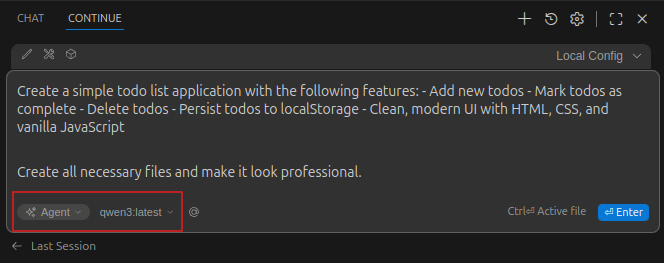
Open Continue chat (Ctrl+L / Cmd+L) and use this prompt. Important: Make sure to select "Agent" mode from the dropdown and choose your configured model (e.g., qwen-coder:7b) before submitting:
Create all necessary files and make it look professional.
Step 3: Review and Iterate
Continue will generate index.html for the main HTML structure, style.css for styling, and app.js for JavaScript logic. Review the generated code and ask for improvements:
Or request specific features:
Step 4: Test and Refine
- Open
index.htmlin your browser - Test all functionality
- Ask Continue to fix any bugs you find:
This iterative process demonstrates how you can work with the AI assistant to build and refine your application entirely offline.
Limitations & Trade-offs
While running AI models locally offers significant benefits, there are important trade-offs to consider:
Performance
Local inference is slower than cloud services, especially on CPU-only systems. Models consume significant RAM and CPU/GPU resources, and on laptops, running models can drain battery quickly. This is the trade-off for privacy and offline capability.
Model Capabilities
One of the biggest trade-offs I've noticed is that local models lack the context awareness and codebase understanding that cloud solutions provide. They don't find things easily sometimes—struggling to navigate large codebases, locate specific functions, or understand project structure as effectively as solutions like Cursor, CodeClaude, or Kiro. While the code quality is good for focused tasks, local models may not match the latest cloud models in complex reasoning tasks or codebase-wide understanding. Multi-language support may also be weaker than specialized cloud models.
However, it's worth noting that this is improving rapidly. The introduction of agent modes in Continue helps bridge some of these gaps, allowing models to take multiple actions and explore the codebase more effectively. Each update brings better context handling and code navigation capabilities.
Hardware Constraints
Larger, better models need substantial RAM, and best performance requires a compatible GPU. Models can be several gigabytes each, requiring significant storage space. These hardware requirements can be a barrier for some developers.
When to Use Cloud Alternatives
Consider cloud-based solutions when you need the absolute best code quality, are working on very large codebases that exceed context limits, don't have suitable hardware, or when internet connectivity is reliable and privacy isn't a primary concern.
Reflection
After using this setup for development, here are some observations. What works well includes complete confidence that code never leaves your machine, perfect offline capability without internet, no subscription fees or usage limits, and the learning experience of understanding how AI models work in practice.
Challenges encountered include slower response times than cloud services, especially for complex requests. Hardware requirements necessitated upgrading RAM for better models, and finding the right balance between quality and performance took experimentation with different model sizes.
Best use cases are working with sensitive codebases, learning and experimentation, development in low-bandwidth environments, and long-term cost savings for heavy users. Areas for improvement include model fine-tuning for specific languages or frameworks, better GPU utilization on systems with multiple GPUs, and integration with more development tools.
Conclusion
Setting up an offline AI coding assistant with Ollama, Qwen-Coder, and Continue provides a powerful, privacy-focused alternative to cloud-based solutions. While it requires more initial setup and hardware investment, the benefits of privacy, independence, and cost control make it an excellent choice for many developers.
The setup process is straightforward, and once configured, you have a fully functional AI assistant that works entirely offline. Whether you're a privacy-conscious developer, homelab enthusiast, or someone working with sensitive code, this solution offers a practical path to AI-assisted development without compromising your data.
As local AI models continue to improve and hardware becomes more accessible, we can expect this approach to become increasingly viable for more developers. The combination of privacy, control, and independence makes it a compelling option in the evolving landscape of AI-assisted development tools.
References
- Ollama: ollama.com - Local LLM runtime and model library
- Qwen-Coder: github.com/QwenLM/Qwen - Code-focused language model
- Continue Extension: continue.dev - Open-source AI coding assistant for VSCode
- VSCode: code.visualstudio.com - Code editor
- Ollama Documentation: github.com/ollama/ollama - Installation and usage guides
- Continue Documentation: docs.continue.dev - Configuration and usage reference